20 Mar 2026
Post by Elijah
Introduction
The Magic Mouse, with its sleek, minimalistic design, is a much-loved accessory among Mac users. But its allure isn’t lost on PC users who desire its precision and aesthetics. Connecting this Apple accessory to a PC might sound challenging, but with the right guidance, you can bring a touch of Apple refinement to your PC setup. This article will guide you through the process of connecting your Magic Mouse to a PC, address common connectivity issues, and show you how to customize settings for an optimal experience.
Understanding Magic Mouse Compatibility
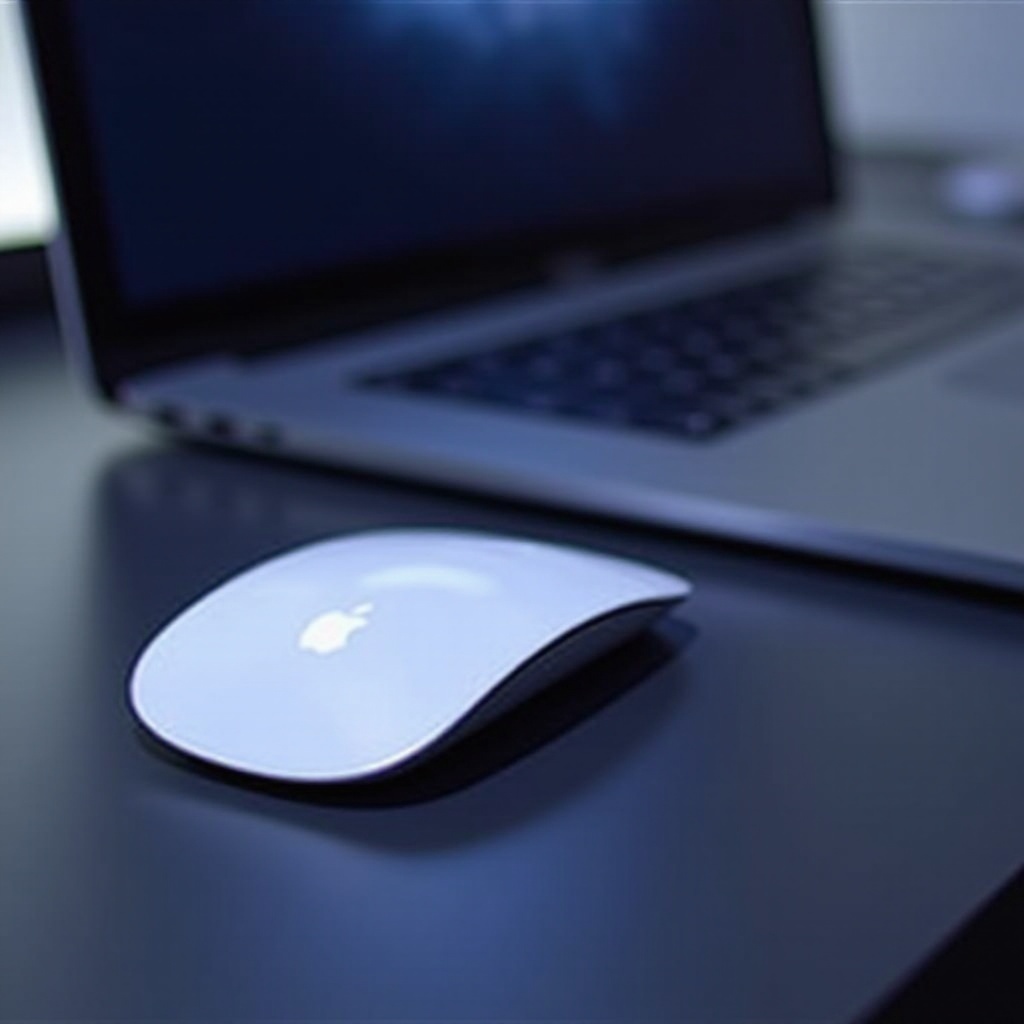
Before attempting to connect the Magic Mouse, it is essential to ensure compatibility. The Magic Mouse relies on Bluetooth technology, present in most modern PCs. It is crucial that your PC is running on Windows 10 or 11, as these operating systems come equipped with native drivers that support Apple’s Magic Mouse. Knowing these prerequisites will save time and effort and prevent unnecessary issues during setup.
With compatibility squared away, let’s dive into the comprehensive steps to establish a connection between your Magic Mouse and your PC.
Step-by-Step Guide to Connecting Your Magic Mouse to a PC
- Preparing the Magic Mouse and PC: Ensure that your Magic Mouse is turned on and fully charged. Navigate to the Bluetooth settings on your PC by accessing the control panel or the main settings menu.
- Pairing the Magic Mouse with Windows Bluetooth: In the Bluetooth settings, initiate a search for nearby devices. When your Magic Mouse appears in the available devices list, select it. Confirm the pairing process if prompted.
- Finalizing the Connection Setup: Test the Magic Mouse to verify its functionality. Make sure the cursor moves smoothly and the clicking features operate as expected.
Now that the basic connection has been laid down, you might encounter some connectivity issues. The following section will address these potential challenges and offer solutions.
Troubleshooting Common Connection Issues
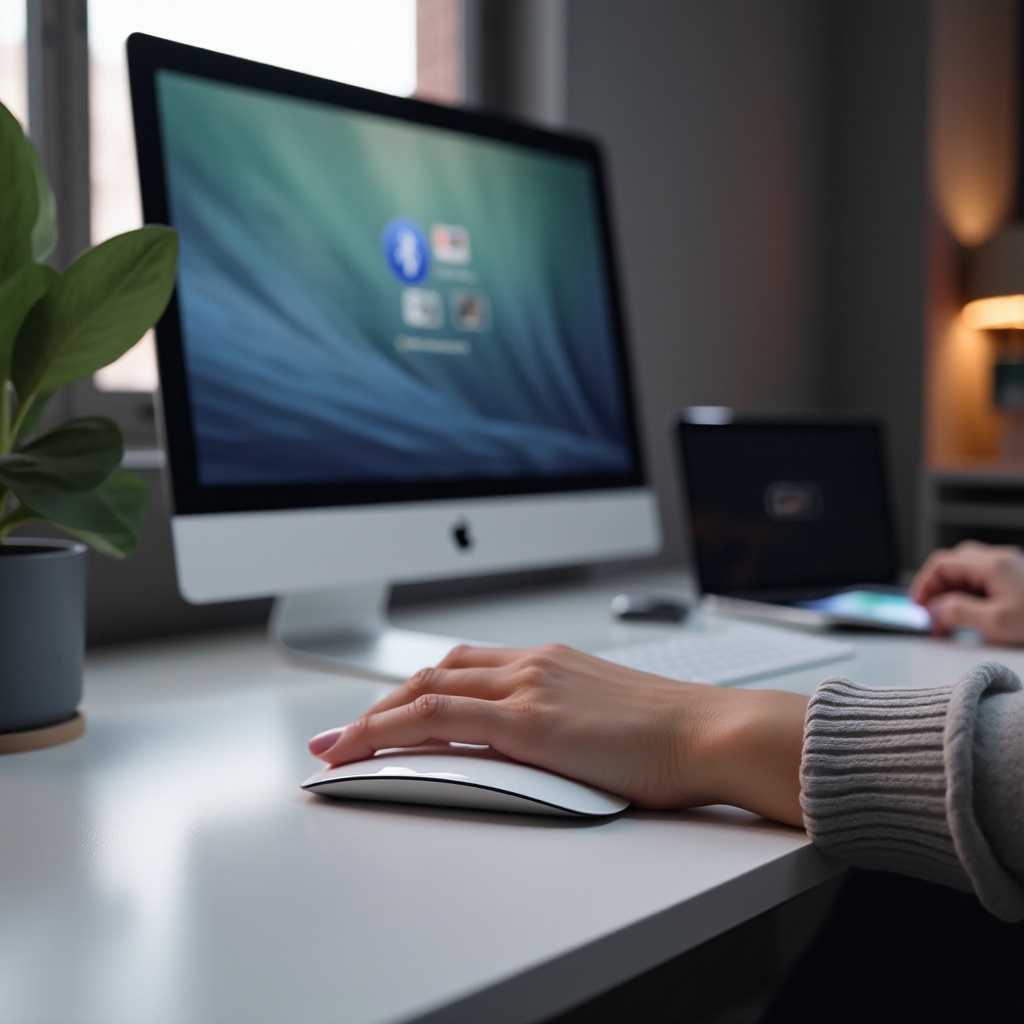
Connecting your Magic Mouse might present some challenges. The following solutions will help resolve typical problems:
– Magic Mouse Not Detected: First, ensure the Bluetooth on your PC is active. If the Magic Mouse isn’t appearing, restart both your PC and the Magic Mouse, then attempt the pairing again.
– Resolving Connection Drops: Reduce any interference from other Bluetooth devices by moving closer to your PC and rechecking connections.
– Fixing Lag and Latency: Clear the signal path–make sure there is nothing obstructing the Magic Mouse and PC. Ensure your Bluetooth drivers are updated for smoother performance.
After ensuring that your Magic Mouse is functioning, it’s time to personalize the settings to make the most of its features. Keep reading to learn how.
Configuring Magic Mouse Settings on Your PC
Customizing your Magic Mouse settings enhances its usability significantly. Here is how you can adapt it to suit your needs:
– Using Windows Native Settings: Open ‘Mouse Settings’ in Windows to adjust the Magic Mouse’s sensitivity and scrolling preferences.
– Exploring Third-Party Software Options: Consider using applications like Magic Utilities, which allow gesture usage and button configuration.
– Customizing Gestures and Controls: For advanced functionalities like swipe gestures, third-party software will extend Magic Mouse capabilities on a PC, bringing a touch of Mac ease.
Proper maintenance is crucial for the longevity and optimal performance of your Magic Mouse. The following section covers how to care for your device.

Maintaining Optimal Magic Mouse Performance
Keeping your Magic Mouse in peak condition will ensure it functions smoothly. Here’s how to maintain it:
– Cleaning and Care Tips: Frequently wipe your Magic Mouse with a microfiber cloth to prevent sensor interference and maintain its smooth surface.
– Battery Life Management: Use quality batteries and turn off the Magic Mouse when it is not in use to conserve battery.
As we draw this guide to a close, let’s summarize the key points and proceed to some frequently asked questions regarding the Magic Mouse on a PC.
Conclusion
Integrating a Magic Mouse into a PC setup offers an exciting blend of functionality and style. This guide has provided you with the steps to connect and troubleshoot your Magic Mouse, empowering you to tailor its features to suit your PC environment. By following these instructions, you can ensure a seamless user experience.
Frequently Asked Questions
Can I use Magic Mouse with Windows 10 and Windows 11?
Yes, both Windows 10 and Windows 11 support Magic Mouse connectivity through built-in Bluetooth features.
What should I do if my Magic Mouse disconnects frequently?
Ensure there’s minimal interference from other devices, update your Bluetooth drivers, and maintain proximity between your PC and Magic Mouse.
Are there any gesture features available with the Magic Mouse on a PC?
Basic gestures are available, but third-party software is essential for full gesture functionality on a PC.