8 May 2026
Post by Elijah
Introduction
Customizing your iPhone wallpaper offers a unique chance to showcase personal photos and memories on a rotating basis. A wallpaper slideshow on your iPhone can keep your home screen dynamic and engaging, allowing you to enjoy different images in a seamless flow. This detailed guide will help you set up a wallpaper slideshow on your iPhone, ensuring a delightful viewing experience each time you use your device.
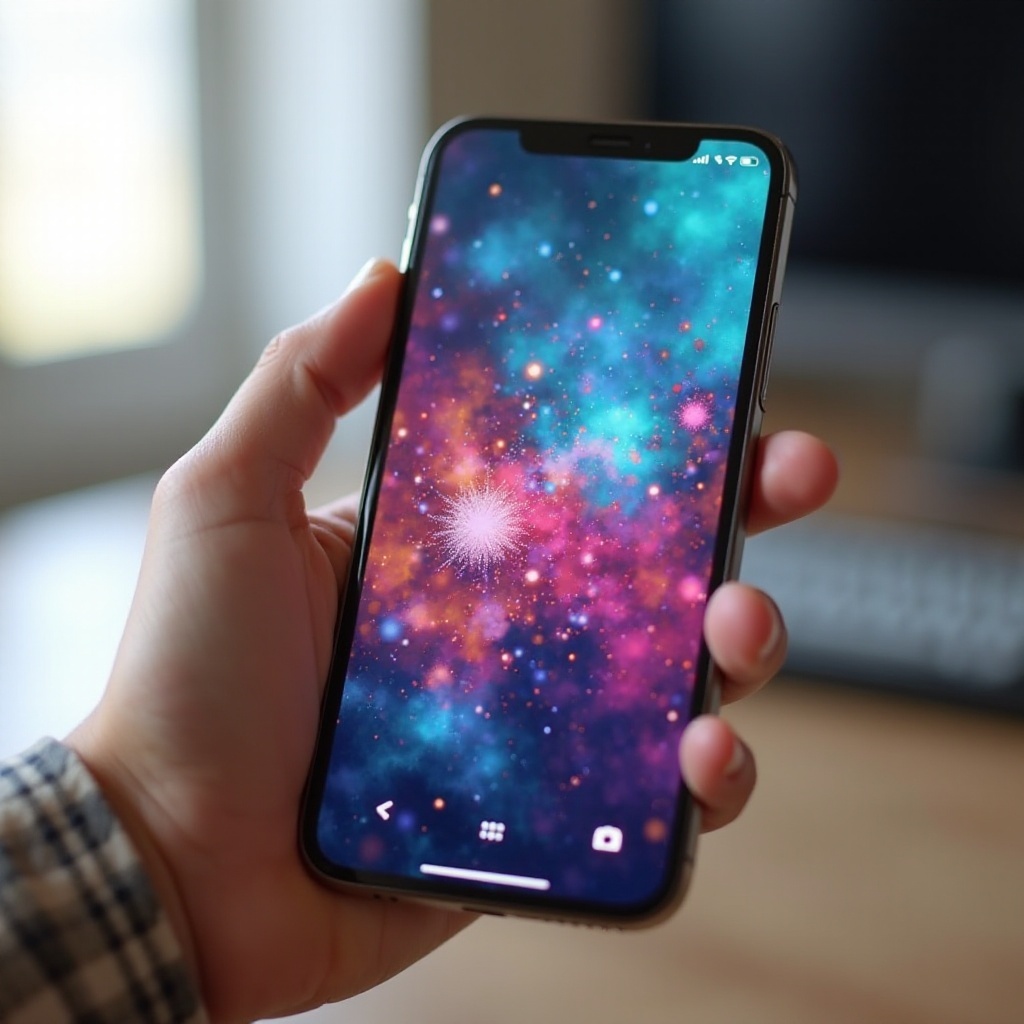
Understanding iPhone’s Wallpaper Features
Before diving into the slideshow setup, it’s crucial to understand your iPhone’s wallpaper features. By knowing the options available, you can make informed choices that suit your preferences.
-
Static vs. Dynamic vs. Slideshow Wallpapers:
Static wallpapers are static images, providing no motion. Dynamic wallpapers include animations with limited customization. Meanwhile, a slideshow allows you to display multiple images in a series, giving your screen a fresh look with each transition. -
Benefits of Customizing Your iPhone Screen:
Customizing wallpapers not only enhances aesthetics but also personalizes your phone to reflect your style. A slideshow can revitalize your device with your favorite photos and create an emotionally uplifting experience.
Understanding these features sets the stage for preparing your images, which is the next step in creating a slideshow.
Preparing Your Images for a Slideshow
Quality images are the foundation of an appealing slideshow. Taking the time to select and organize your photos ensures they display beautifully across your screen.
-
Selecting High-Quality Images:
Opt for images with high resolution to maintain visual clarity on the screen. Steer clear of cluttered or dull images to keep your icons and text legible. -
Organizing Images into Albums:
Use your Photos app to craft a dedicated album for the images you plan to include in your slideshow. This organization simplifies selection and setup. -
Image Resolution and Format Tips:
Consistent resolution is key for a polished look. Stick with JPEG or PNG formats for their balance of quality and storage efficiency.
Once your images are prepared, you’re ready to set them into a slideshow, adding a touch of liveliness to your iPhone’s display.
Setting Up a Slideshow Wallpaper on iPhone
Creating a slideshow for your wallpaper is straightforward. Here’s how to set up your device to offer a constantly refreshing view:
-
Accessing the Photos App:
Open your Photos app and locate the album with your chosen images. -
Creating Albums for Slideshow Images:
If not done already, navigate to the ‘Albums’ tab, tap ‘New Album,’ and add your preferred images. -
Enabling Slideshow in Settings:
- Go to ‘Settings’ on your iPhone.
- Choose ‘Wallpaper’ and then ‘Choose a New Wallpaper.
- Select the first image from your slideshow album.
- Ensure the ‘Slideshow’ option is activated, although variations might occur with different iOS updates.
Follow these steps to start enjoying an ever-changing wallpaper. Beyond setup, there’s room for custom tweaks.
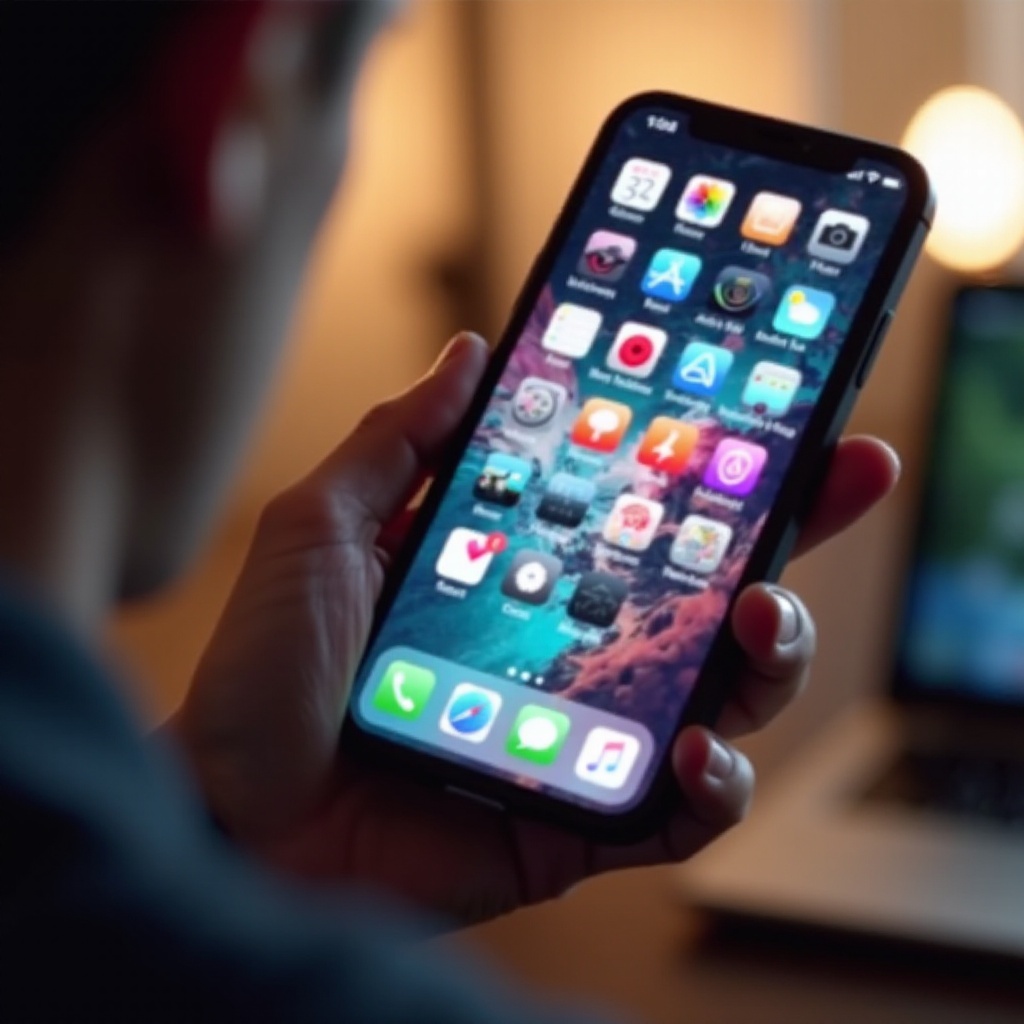
Customizing Your Slideshow Settings
A few adjustments can enhance your slideshow’s appeal, making transitions as seamless or as dynamic as you like.
-
Adjusting Transition Effects:
Experiment with various transition effects available within iOS to enrich the slideshow experience as images transition. -
Changing Duration and Order:
Set how long each image appears on screen, and organize them in a specific sequence to align with your mood or preferences. -
Managing Slideshow Preferences:
Customize when your slideshow is active—such as when charging or during specific times of the day—to conserve battery life efficiently.
These customizations help ensure your slideshow mirrors your style while maintaining practicality. Once satisfied with settings, you can further enhance the experience through additional tips.
Tips and Tricks for Enhancing Your Slideshow
Elevate your slideshow with these strategies that add a layer of creativity and efficiency.
-
Theme Ideas for Slideshow:
Create themed collections like ‘Vacation Highlights,’ ‘Family and Friends,’ or ‘Seasonal Sceneries’ to transform the aesthetic of your device routinely. -
Battery Life Considerations:
Turn down brightness settings and limit slideshow activity during low battery times to extend device runtime. -
Using Third-Party Apps for Customization:
Explore third-party apps that offer advanced slideshow controls and customizable features for a truly tailored experience.
By integrating these techniques, your iPhone’s slideshow becomes a unique feature that reflects your individuality and adaptability.
Conclusion
Setting up a wallpaper slideshow on an iPhone presents an opportunity to make your device truly yours. Through the selection of personal photos and customizable settings, you can keep your device lively and reflective of your favorite moments. Engage with the process today and establish a new connection with your cherished photos, making your phone a constant source of visual delight.
Frequently Asked Questions
Does a Slideshow Wallpaper Affect Battery Life?
Yes, depending on transition frequency and settings, it may impact battery. Adjust settings to reduce battery consumption.
Can I Include Live Photos in My Slideshow?
As of recent iOS versions, Live Photos can be incorporated, adding dynamic content to your slideshow.
How Do I Remove a Slideshow and Return to a Single Image?
Revert to a single wallpaper by going to ‘Settings,’ then ‘Wallpaper,’ selecting your static image, and disabling the slideshow.