2 Jan 2026
Post by Elijah
Introduction
Elevate your audio experience by connecting your Sony XM5 headphones to a MacBook. The XM5 headphones are designed to deliver exceptional sound quality, making them ideal for work, entertainment, or music production. This guide provides detailed steps to pair your Sony XM5 with a MacBook, ensuring a smooth connection and enhanced audio output.
Checking Compatibility and Preparing Devices
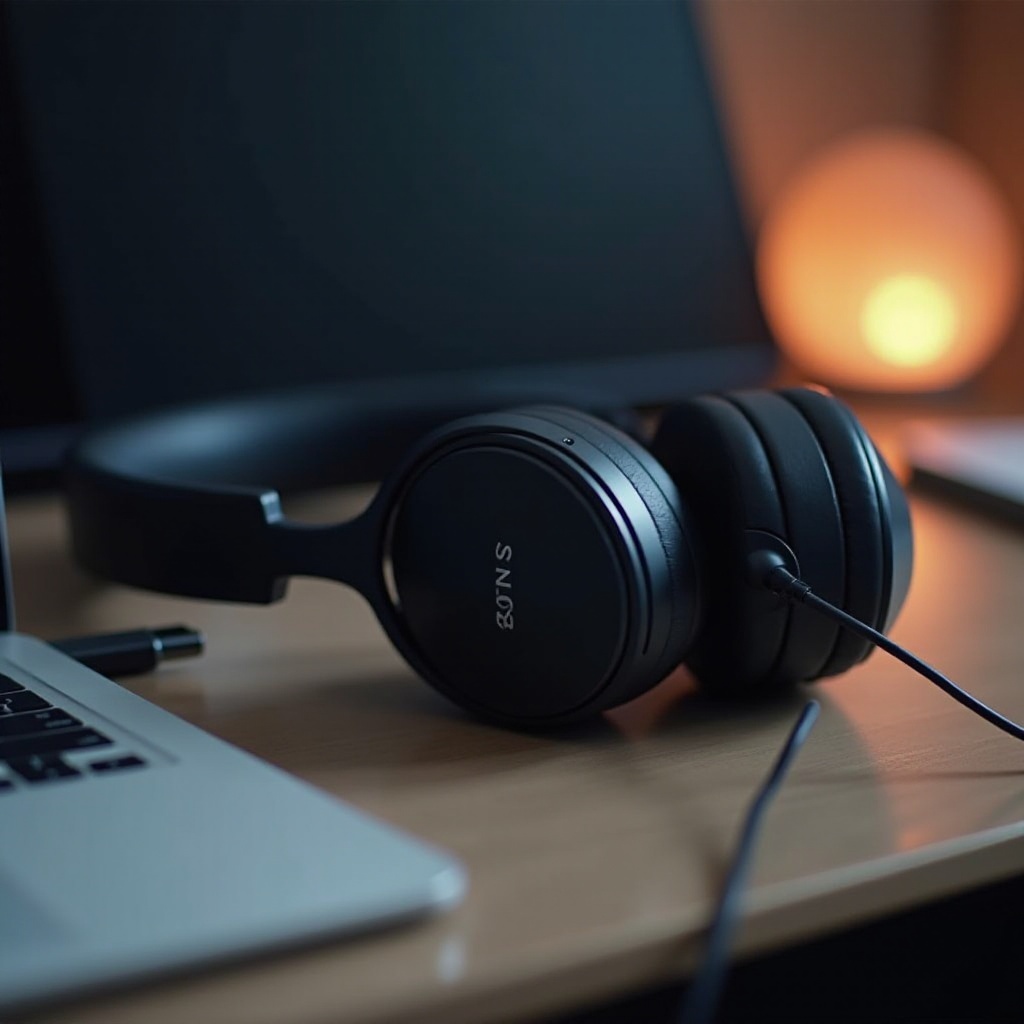
Before initiating the pairing process, it’s important to confirm that your MacBook and Sony XM5 headphones are prepared and fully compatible.
Ensuring Bluetooth Functionality on the MacBook
Firstly, verify your MacBook’s Bluetooth capability. Access the Apple menu, navigate to ‘System Preferences,’ and select ‘Bluetooth.’ Ensure Bluetooth is active and that your MacBook is discoverable. If not, activate Bluetooth by clicking ‘Turn Bluetooth On.
Preparing the Sony XM5 for Pairing
Next, make sure your Sony XM5 headphones are ready. Power on the headphones and ensure they are charged. Hold the power button until you see the LED indicator flashing blue, which signifies that the headphones are in pairing mode and ready for connection.
Step-by-Step Guide to Connecting Sony XM5 to MacBook
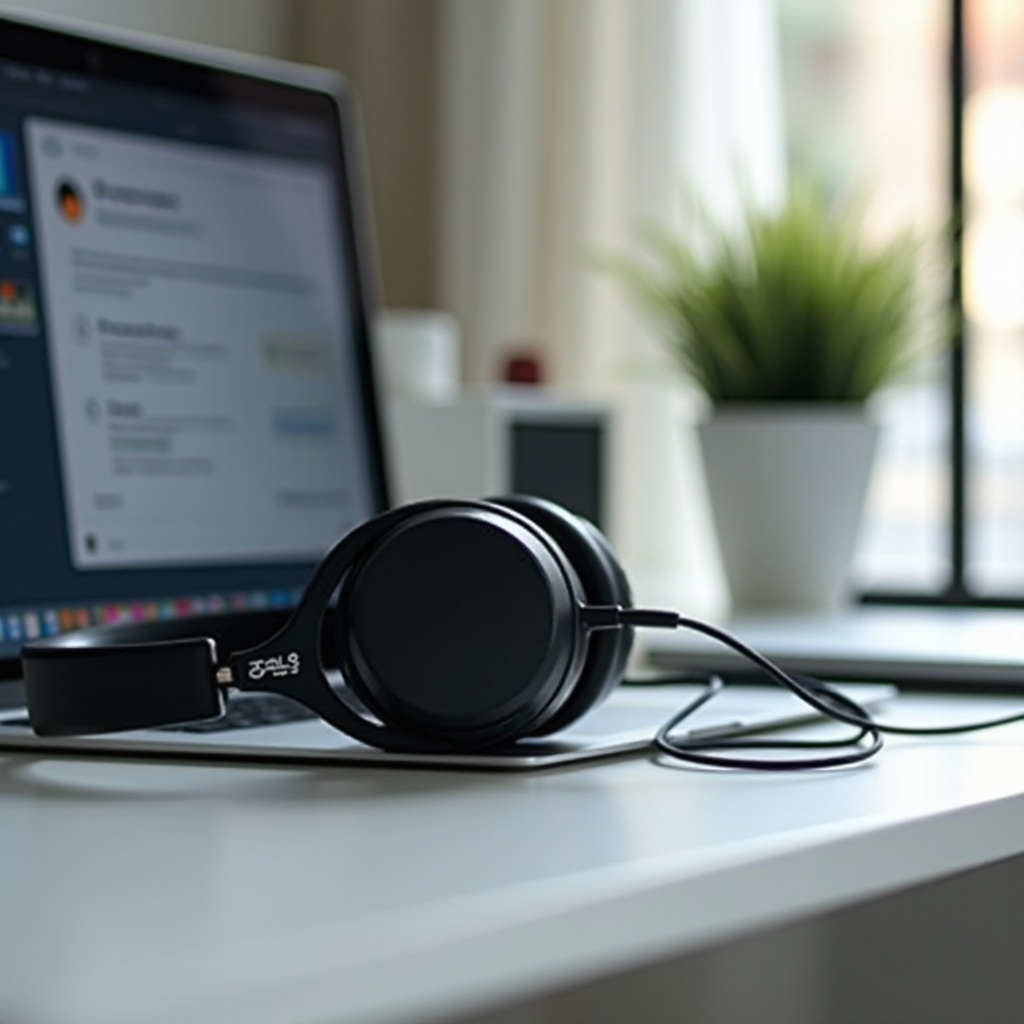
With both devices ready, proceed with the pairing steps.
Activating Pairing Mode on Sony XM5
If the headphones are not yet in pairing mode, press and hold the power button for about 7 seconds until the indicator light starts flashing. A voice prompt will confirm that the headphones are in pairing mode and are now discoverable.
Navigating MacBook Bluetooth Settings
On your MacBook, navigate to Bluetooth settings and verify that Bluetooth is on. You will see a list of nearby devices. Wait for ‘WH-1000XM5’ to appear.
Pairing the Devices Successfully
Once the Sony XM5 appears on the list, click ‘Connect’ next to the device name. Your MacBook will take a few seconds to establish a connection. Once successful, the status next to your headphones will change to ‘Connected,’ and you’re set for a wireless audio experience.
Troubleshooting Common Connection Issues
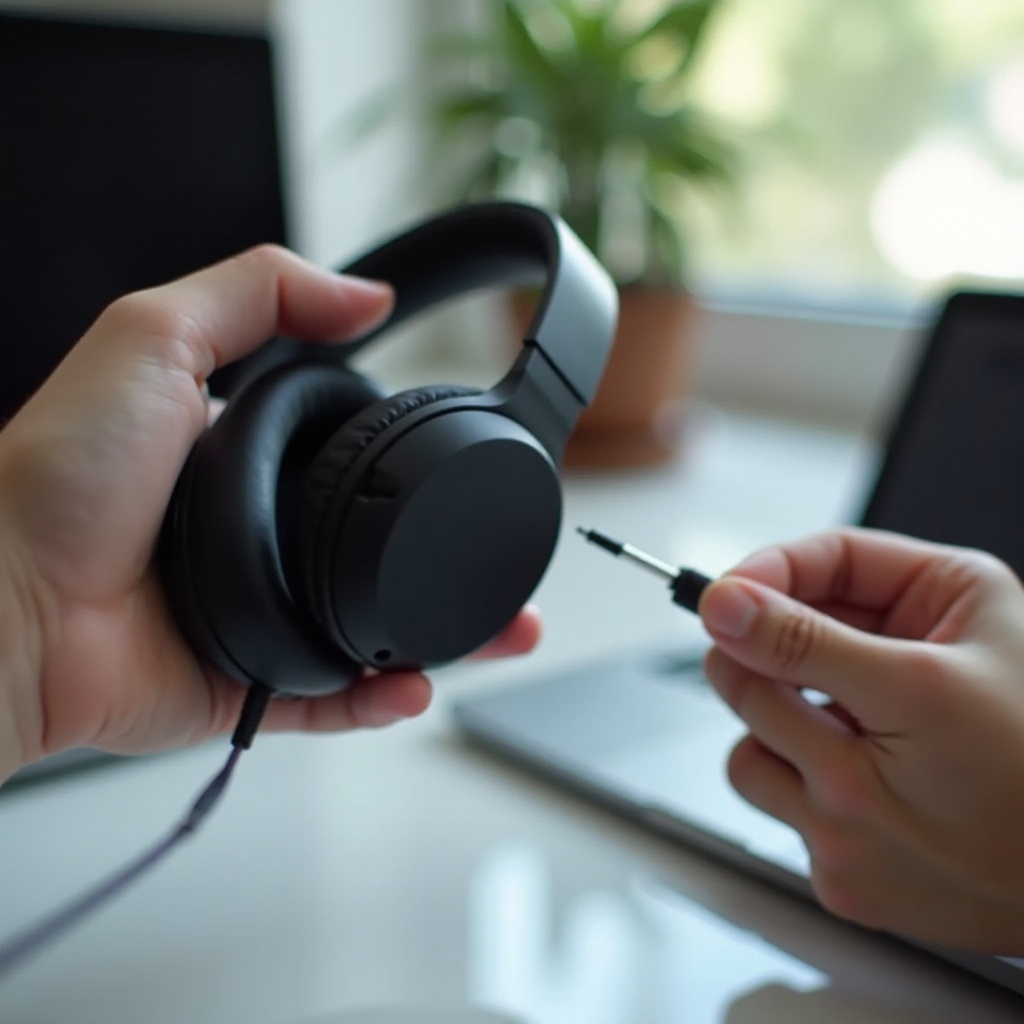
Even with clear instructions, connection hiccups can occur. Here are some solutions for common problems.
Issues with Discoverability
If the MacBook cannot detect the Sony XM5, ensure the headphones are in pairing mode. Try toggling the Bluetooth off and back on. Restart both the headphones and MacBook and attempt pairing anew.
Resolving Failed Connections
For frequent disconnections, ensure no barriers exist between devices. Physical obstructions or wireless interference can affect signal stability. Clearing obstacles or relocating can help.
Resetting Bluetooth Preferences
Persistent issues may require resetting the MacBook’s Bluetooth preferences. Go to ‘System Preferences’ > ‘Bluetooth,’ remove the Sony XM5 from the list and then try pairing again using previous instructions.
Enhancing Your Audio Experience
With the devices connected, explore ways to optimize your audio experience further.
Utilizing Sony Application Features
Download the Sony Headphones Connect app to unlock customization options. Use it to fine-tune sound settings, adjust equalization, and access firmware updates to ensure peak headphone performance.
Adjusting MacBook Sound Settings
Within the MacBook, adjust sound settings by going to ‘System Preferences’ > ‘Sound’ to set the output device to your headphones. Customize volume and balance for optimal listening.
Conclusion
Pairing your Sony XM5 headphones with a MacBook is a straightforward process with the right steps. By confirming compatibility and following a structured approach, you can enjoy superior sound quality. Remember to use Sony’s features for an enhanced audio experience.
Frequently Asked Questions
Why Won’t My Sony XM5 Connect to My MacBook?
Ensure your headphones are in pairing mode and your MacBook’s Bluetooth is on. Restart both devices and retry the pairing process if issues persist.
How Can I Improve Bluetooth Connection Stability?
Minimize interference by removing obstacles and staying within range. Consider a Bluetooth booster if issues continue.
How Do I Use the XM5’s Noise-Cancelling Feature on MacBook?
Activate noise cancellation directly on the headphones. Use the Sony Headphones Connect app for advanced settings tailored to various environments.