17 Jul 2026
Post by Elijah
Introduction
Achieving restful sleep in the digital age can be challenging, especially with the temptation of iPad usage before bedtime. However, your iPad offers a practical solution through its sleep timer feature. Properly using the sleep timer can help balance screen time and promote better sleep. This guide will explore how you can efficiently set and utilize the sleep timer on your iPad to enhance your bedtime routine.
Understanding the iPad Sleep Timer
Before we delve into the setup process, let’s understand the sleep timer and its benefits.
-
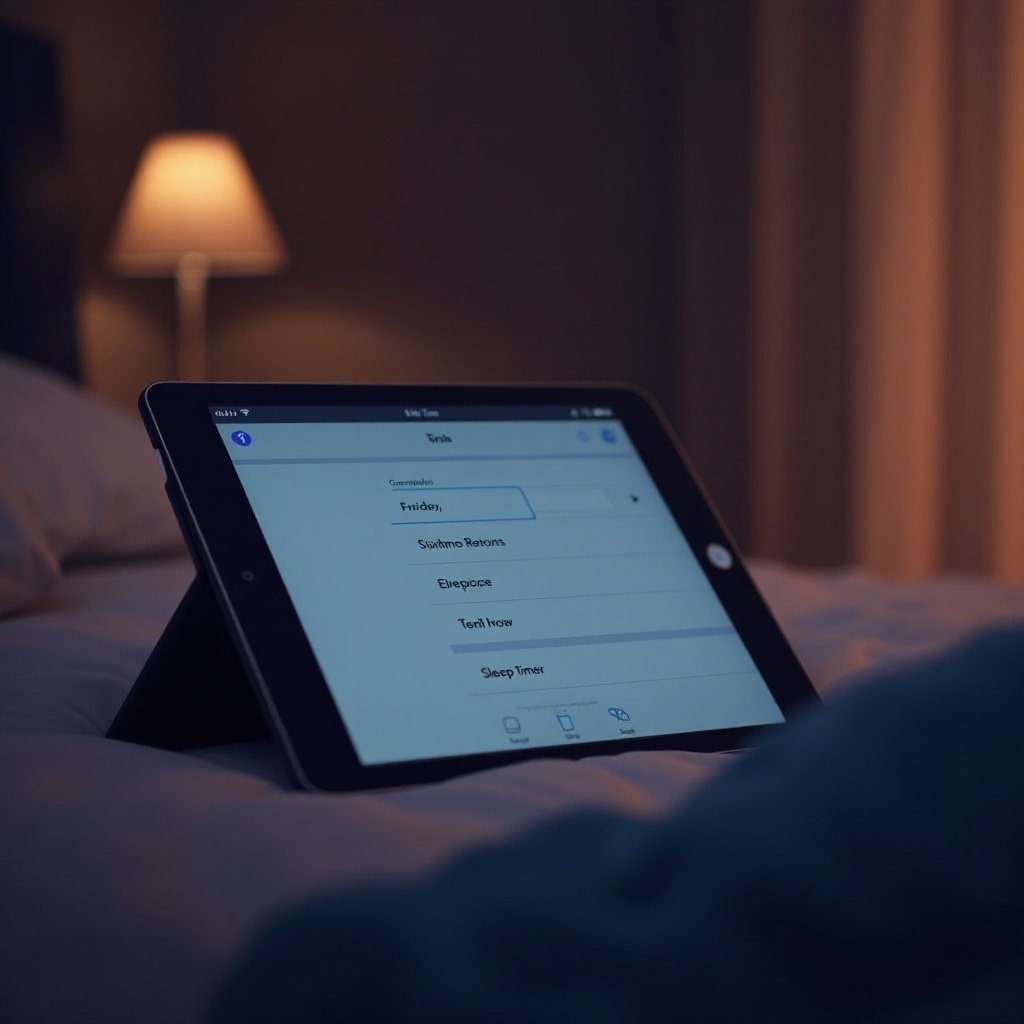
What is a Sleep Timer? A sleep timer is designed to automatically stop media playback on your iPad after a specified duration. This function prevents media from playing all night, helping protect your sleep.
-
Benefits of Using a Sleep Timer: Using a sleep timer can minimize unnecessary screen exposure, contributing to improved sleep. When the iPad powers down media apps, it reinforces healthy digital habits.
-
Sleep Timer vs. Regular Timer: Unlike a regular timer that merely alerts you with a sound, a sleep timer ensures your device ceases activity at the desired time, helping you maintain a responsible media consumption schedule.
Having a clear understanding of these concepts lays the groundwork for effectively setting the feature on your iPad.
Step-by-Step Guide to Setting a Sleep Timer
Here is an easy-to-follow guide to setting up your iPad sleep timer:
-
Access the Clock App: Begin by opening the ‘Clock’ app on your iPad. It comes as a pre-installed app and contains crucial settings like alarms and timers.
-
Setting Up the Sleep Timer:
- Navigate to the ‘Timer’ section within the Clock app.
- Choose the duration you want for your sleep timer.
-
Instead of choosing a ringtone, select ‘Stop Playing’ under the ‘When Timer Ends’ option. This ensures that the iPad will stop audio or video playback when the timer ends.
-
Customizing Timer Settings:
- You can tailor this timer to work with different apps like Apple Music, Podcasts, and even video streaming services.
- Adjust settings to fit into different nightly routines or preferences.
Following these steps provides a seamless experience, allowing you to manage your screen times wisely.
Advanced Uses of Sleep Timer on iPad
Now that you’ve learned the basics, let’s look at some advanced ways to use the sleep timer feature:
-
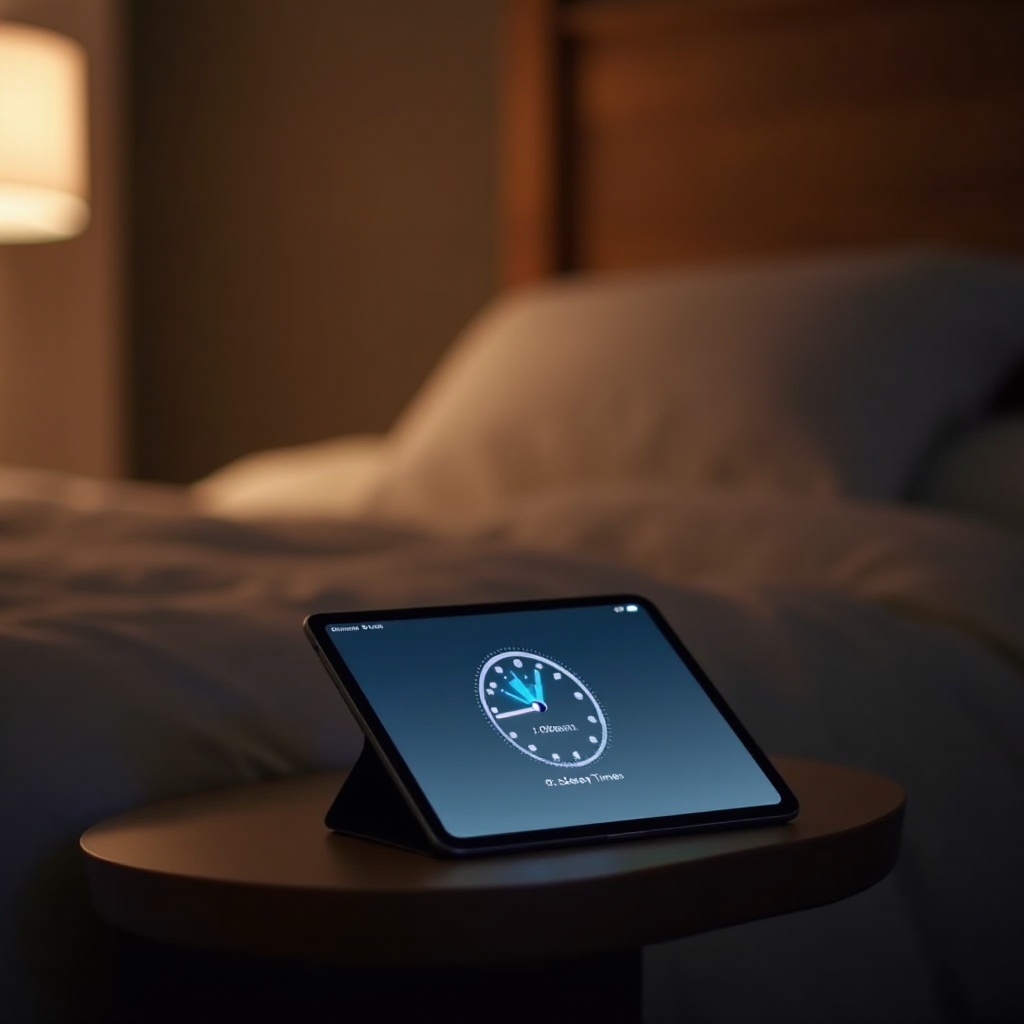
Using Sleep Timer for Music and Podcasts: Set the sleep timer while enjoying your favorite music or podcasts. This way, the media will automatically stop playing when you fall asleep.
-
Integrating with Streaming Apps: Many streaming services on your iPad support sleep timers. This integration ensures you can fall asleep to movies or shows without them playing throughout the night.
-
Utilizing with Screen Time Controls: Harmonizing your sleep timer with Apple’s ‘Screen Time’ functionality offers a robust mechanism for regulating overall device usage. This is especially beneficial for managing screen exposure of children and building productive usage patterns for everyone.
Understanding these advanced uses increases the flexibility of the sleep timer, enhancing your overall iPad experience.
Tips for Maximizing Your Sleep Timer
To further leverage your sleep timer’s capabilities, consider the following tips:
-
Best Practices for iPad Usage Before Bed: Optimize your iPad’s night settings by reducing the screen’s brightness, utilizing night mode, and selecting softer, soothing media content. These complement the sleep timer functions.
-
Combining with Other Sleep Hygiene Techniques: Creating a consistent bedtime routine, such as reading a book or dimming the lights, along with using the sleep timer, significantly promotes better sleep quality.
Applying these strategies will empower you to better manage iPad usage and create a conducive environment for sleep.
Conclusion
Using a sleep timer on your iPad is a simple yet effective way to enhance your sleep quality by managing how technology fits into your nightly routine. By following the outlined steps, you ensure that your digital habits align with your health and wellness goals. Incorporating a sleep timer is an easy practice that supports a healthier, more peaceful sleep experience.
Frequently Asked Questions
Can I set a sleep timer for videos on my iPad?
Yes, you can set a sleep timer for videos using the same method in the Clock app. Start your video, set the timer, and select ‘Stop Playing.’
Does using a sleep timer save battery life?
It can save battery life by reducing unnecessary screen time and powering down media apps when you’re not actively using them.
Is the sleep timer feature available on all iPad models?
Yes, most iPad models from recent generations support this feature through the Clock app. Ensure your device is updated for full compatibility.