19 Dec 2025
Post by Elijah
Introduction
The Xbox 360 remains a cherished gaming console for enthusiasts around the world. Whether you are experiencing your Xbox 360 for the first time or revisiting after some time, understanding how to effectively turn on and configure your console is crucial. This guide walks you through each step of setting up your Xbox 360, troubleshooting any issues, and enhancing your overall gaming experience.
Unpacking and Preparing Your Xbox 360
Before you can start gaming, ensure you have all the necessary components of the Xbox 360. Begin by checking the box for the following items:
– Xbox 360 console
– Power supply and cables
– AV or HDMI cable
– Xbox 360 controller(s)
– User manual
Once all components are accounted for, choose a suitable location for the console. Ensure that it is well-ventilated and situated on a stable surface. Avoid areas with excess dust or direct sunlight to prevent overheating. Being near a power outlet will also facilitate ease of setup.
Setting Up Your Xbox 360 Hardware
With the console prep complete, it’s time to connect your Xbox 360 hardware. Follow these steps carefully:
-
Connecting to Power Supply: Insert the power supply into the console and plug it into a power outlet. Double-check the connection to confirm it’s secure.
-
Connecting to Your TV or Monitor: Opt for either the AV cable or HDMI cable for video output. HDMI provides superior picture quality. Connect the appropriate end to the console and the other to your TV or monitor’s input port.
-
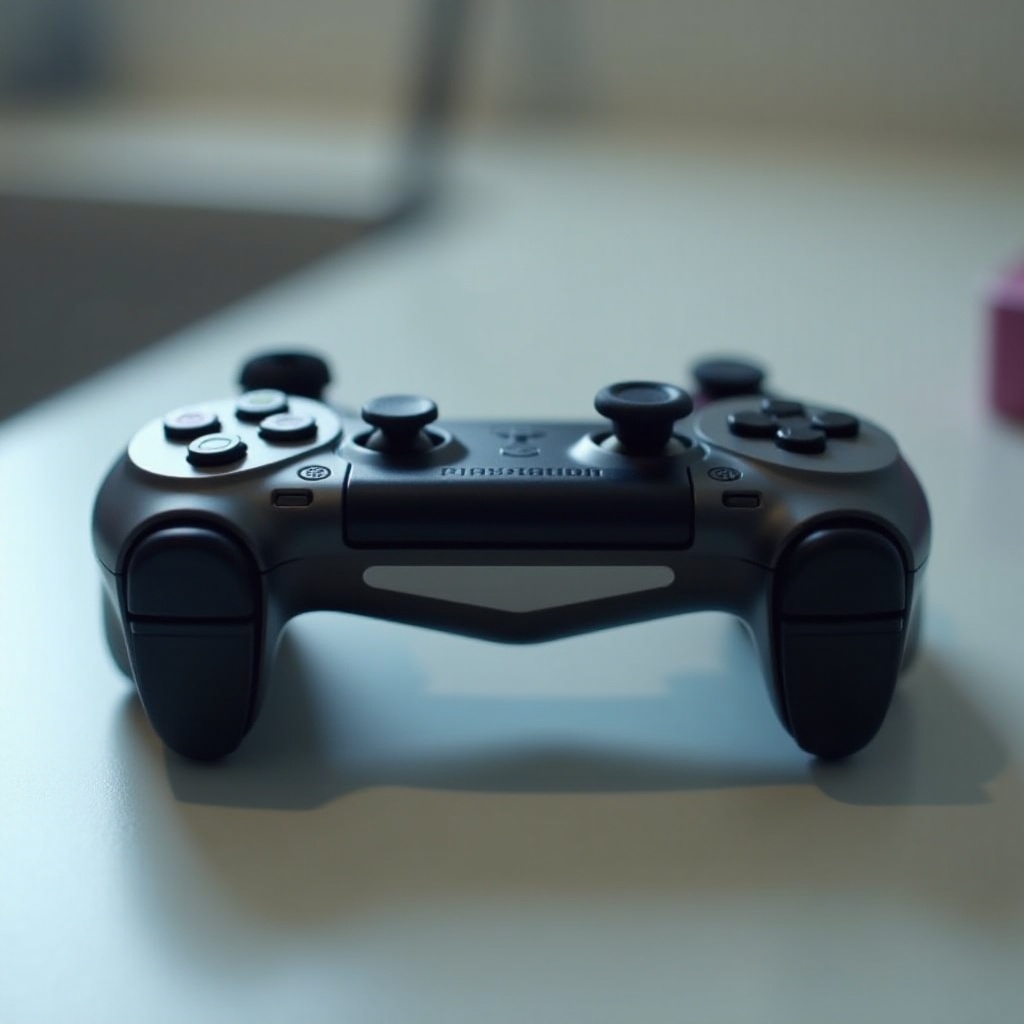
Attaching the Controllers: For wired controllers, plug into a USB port on the console. For wireless, insert batteries, then press the sync button on both the controller and console to pair.
After setting up the hardware, you’re ready to power on the console and prepare for gaming.
Powering On Your Xbox 360
The initial power-up process is crucial for setting things in motion:
-
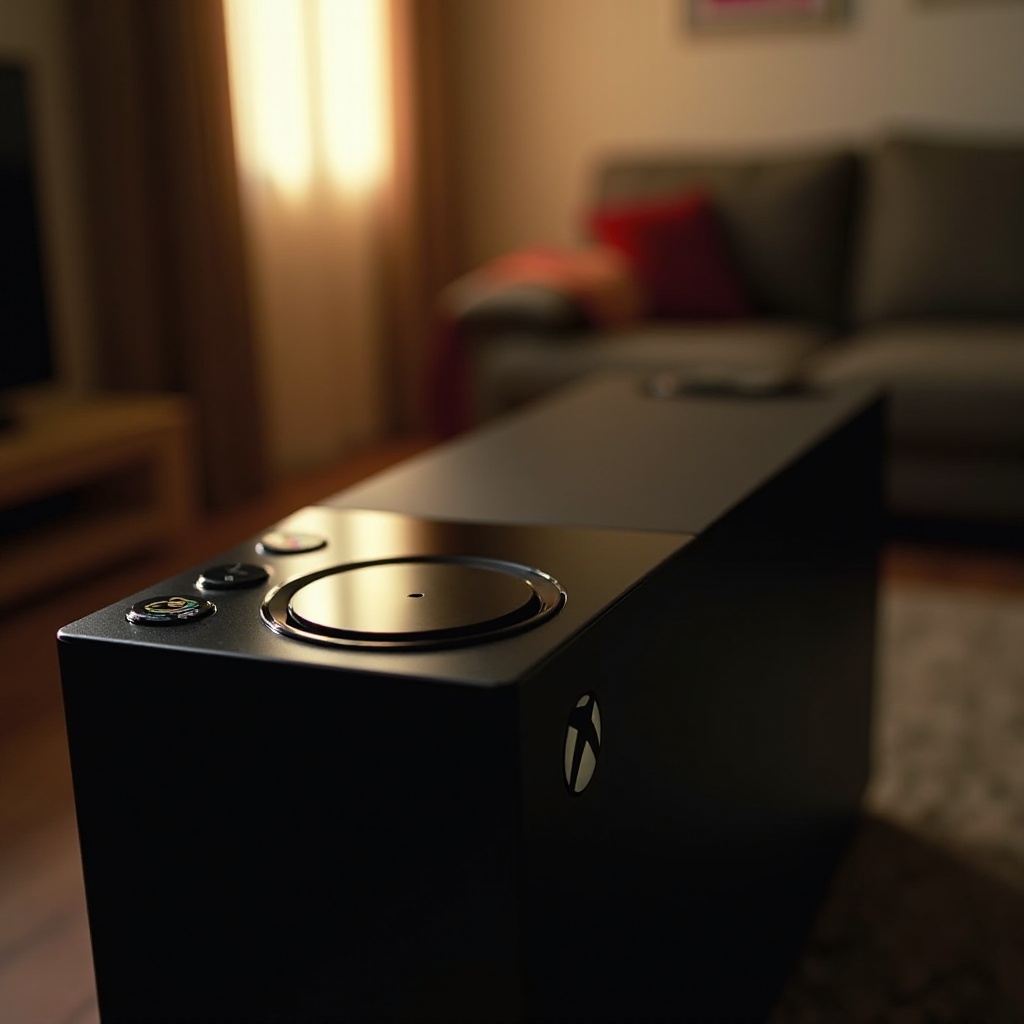
Locating the Power Button: Locate the power button featuring the Xbox logo on the console’s front. Press it to power the unit. Alternatively, you can use the Xbox button on a synced controller.
-
Troubleshooting Power-On Issues: If the console fails to turn on, ensure all cables are properly connected and the power outlet is functional. A red or flashing light on the power supply indicates issues; consult the manual or support.
-
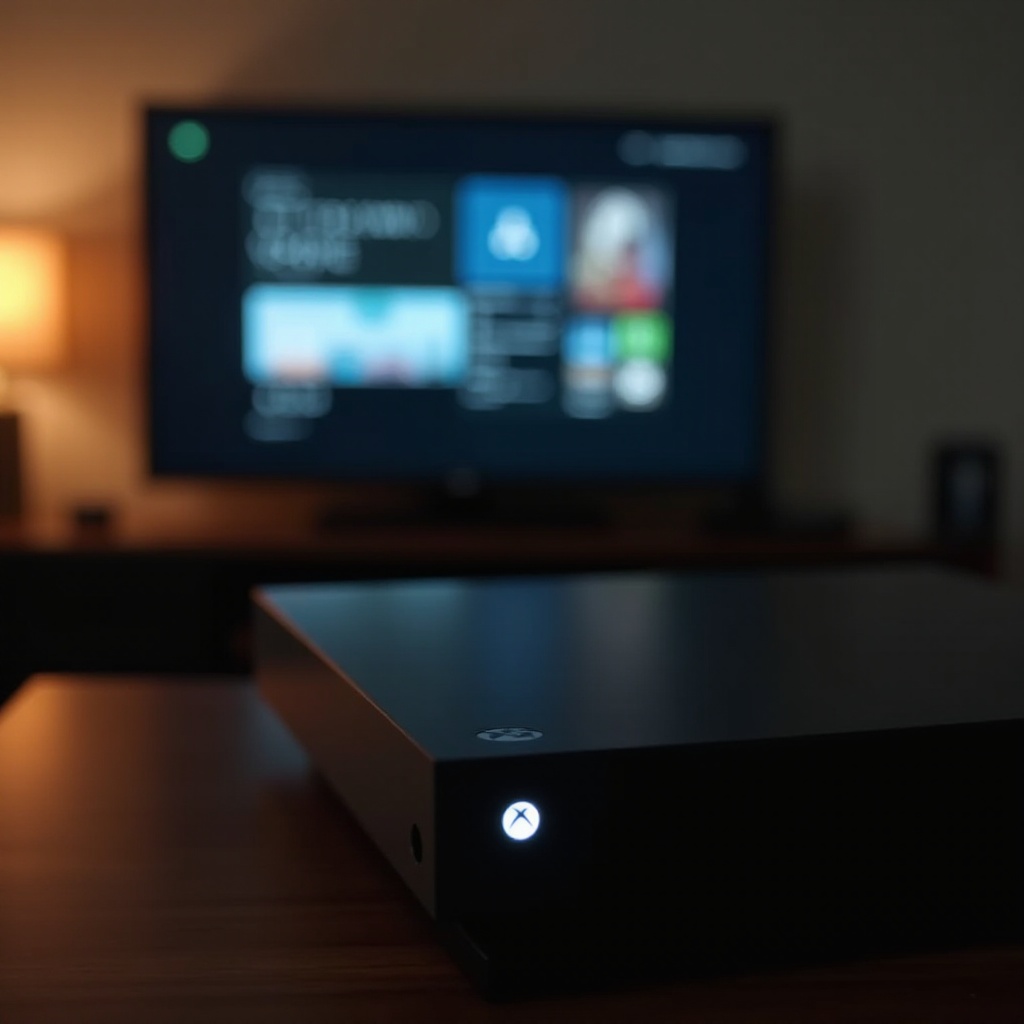
Understanding Indicator Lights: A green light around the power button signifies proper functionality. Different patterns may indicate specific errors; refer to your manual for guidance.
With your console powered on, it’s time to configure the initial settings to optimize your gaming.
Configuring Initial Settings
As you proceed, set the foundation for your system’s operation:
-
Setting Language and Location: Upon startup, choose your language and location preferences. Navigate and confirm each selection using the controller.
-
Creating a User Profile: Follow on-screen prompts to create a profile. Enter details, select a gamertag, and pick a profile picture.
-
Connecting to the Internet: Use either a wired or wireless connection. For wired, connect an Ethernet cable to the console and router. For wireless, select your Wi-Fi network and enter the password.
With these steps completed, you are ready to explore the Xbox 360 dashboard.

Navigating the Xbox 360 Dashboard
The Xbox 360 dashboard serves as the control hub for all your gaming and entertainment needs:
-
Home Screen Overview: The dashboard’s main screen displays your recently accessed games and apps. Use the directional pad to navigate with ease.
-
Accessing Game Libraries: From the home screen, visit the ‘My Games’ section to view and start downloaded or installed games.
-
Managing System Settings: The settings menu hosts various options, such as network configurations and account management. Regularly check for updates to maintain system performance.
To get the most from your console, consider the following optimizations.
Optimizing Your Xbox 360 Experience
Enhance your gaming sessions with these optimizations:
-
Updating Your Console: System updates ensure new features and increased stability. Navigate to the settings to check for and install updates.
-
Setting Up Xbox Live: Xbox Live offers online multiplayer and game downloads. Set up an account to start enjoying these features.
-
Customizing Audio and Video Settings: Tailor the audio and video setups to suit your preferences and hardware configurations.
These optimizations will help you maximize your Xbox 360 performance and gaming enjoyment.
Conclusion
Having followed this guide, you’re now equipped to start gaming on your Xbox 360 seamlessly. From connecting hardware to optimizing settings, you are ready to jump into exciting gameplay and adventures.
Frequently Asked Questions
What do I do if my Xbox 360 won’t turn on?
Ensure all cables are securely connected, the outlet is functional, and the power supply light is green. If issues persist, consult support.
How can I connect my Xbox 360 to the internet?
For a wired connection, plug an Ethernet cable in. For wireless, choose your network from the settings and enter the Wi-Fi password.
Is it safe to keep my Xbox 360 plugged in when not in use?
Yes, it is safe to leave it plugged in. Consider unplugging during long periods of inactivity or using power-saving settings.